E-8305 Unsupported File Format: Every Cause and How to Fix It

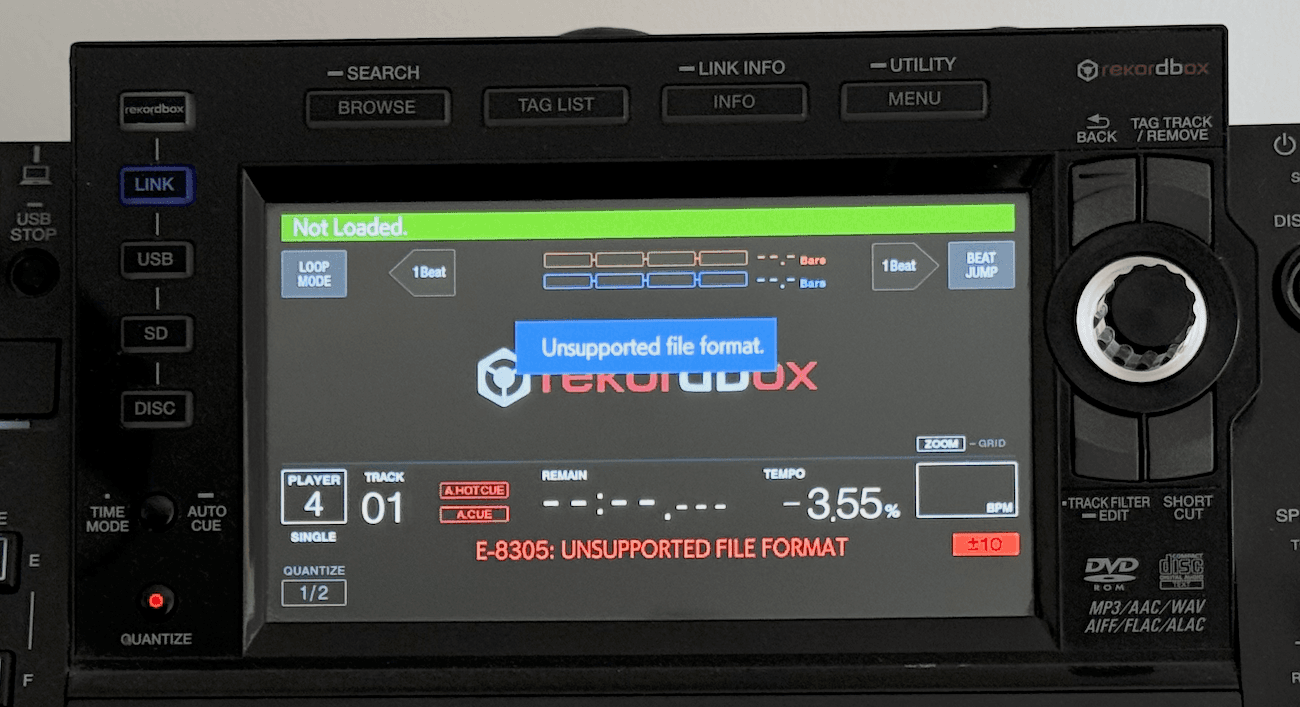
You're an hour before doors, loading your USB into the booth CDJ, and there it is: E-8305 unsupported file format. The track played fine in rekordbox. It played fine on your laptop. It plays fine everywhere except the one machine you actually need it to play on.
Here's the annoying truth about E-8305: it's not one problem, it's at least ten. The same error message covers everything from a Bandcamp WAV header Pioneer doesn't recognize to a 96 kHz master your CDJ physically can't decode. Rekordbox is far more forgiving than the CDJ hardware itself, which is exactly why a file can preview perfectly on your screen and still throw E-8305 on the XDJ-RX or CDJ in front of you.
This guide walks through every known cause of E-8305, what's actually happening inside the file, and how to fix it with ffmpeg, a free command-line tool. If you've never touched a terminal before, don't worry: there's a full section below that walks you through installing ffmpeg and running your first command.
What E-8305 Actually Means
E-8305, sometimes labeled "DATA FORMAT ERROR," fires during format validation, before the CDJ even attempts to decode a single frame of audio. The player looks at the file's header, checks it against a narrow list of supported formats, and rejects anything that doesn't match. On CDJ-350 and older units, both E-8304 and E-8305 display as a generic "UNSUPPORTED FILE FORMAT" message, which makes the two easy to confuse.
The reason this error is so confusing is that rekordbox and your computer use software decoders that support a much wider range of formats than CDJ hardware does. A file can analyze, waveform, and preview correctly in rekordbox while consistently failing the moment it hits the physical player. That mismatch is the single biggest source of E-8305 support requests, and on the XDJ-RX in particular, where many users skip rekordbox entirely and drag files straight from a folder, it shows up constantly.
Below are the ten most common root causes, in roughly the order you're likely to run into them.
WAVE_FORMAT_EXTENSIBLE Headers
You download a WAV from Bandcamp, and it looks completely normal: 24-bit, 44.1 kHz, stereo. It plays in your DAW without a hitch. Load it on the CDJ, though, and you get E-8305 anyway.
The issue is a header flag, not the audio itself. WAV files carry a format tag in their header. Pioneer CDJs only accept the standard PCM tag (0x0001). Bandcamp, along with ffmpeg 4.0 and above, Ableton Live, and Bitwig Studio, frequently write the WAVE_FORMAT_EXTENSIBLE tag (0xFFFE) instead, especially for 24-bit exports. The audio data inside is identical, plain stereo PCM, but the CDJ rejects the file before it ever gets that far. Every Pioneer CDJ and XDJ model is affected, and no firmware update has ever added support for it.
Fix with ffmpeg:
ffmpeg -i input.wav -acodec pcm_s24le -ar 44100 -rf64 never output.wav
The -rf64 never flag is the important part here. It forces ffmpeg to write a standard RIFF/PCM header instead of defaulting back to EXTENSIBLE. Swap pcm_s24le for pcm_s16le if you want a 16-bit output instead.
32-bit Float WAV and AIFF Files
This one hits producers the hardest. You bounce a track out of Ableton, Logic, or FL Studio, and the CDJ throws E-8304 or E-8305 on a file that looks perfectly normal at 44.1 kHz stereo.
Every modern DAW processes audio internally at 32-bit floating point, and many of them default to exporting at that same bit depth unless you explicitly change it. Pioneer CDJs, including the CDJ-3000, only support integer PCM at 16-bit or 24-bit. Floating point audio decodes fine on your computer because desktop audio engines handle it natively. CDJ hardware decoders don't.
Fix with ffmpeg:
ffmpeg -i input.wav -acodec pcm_s24le -rf64 never output.wav
For AIFF instead of WAV, use the big-endian codec:
ffmpeg -i input.aiff -acodec pcm_s24be -ar 44100 output.aiff
Converting from 32-bit float to 24-bit integer is effectively lossless for club playback. 24-bit PCM has around 144 dB of dynamic range, well beyond anything a PA system can reproduce.
Multichannel WAV Files
Increasingly common since Bandcamp started offering spatial audio and stem downloads: a WAV file with more than two channels. It plays fine in a DAW or media player, but every Pioneer CDJ only supports two-channel stereo, full stop. Multichannel files almost always carry the EXTENSIBLE header too, since standard PCM doesn't support more than two channels, so you're often dealing with two problems in one file.
Check the channel count first:
ffprobe -v error -select_streams a:0 -show_entries stream=channels -of default=noprint_wrappers=1 input.wav
Downmix to stereo:
ffmpeg -i input.wav -acodec pcm_s24le -ac 2 -ar 44100 output.wav
The -ac 2 flag applies a standard downmix matrix automatically. For a straightforward stereo release that got bundled into a multichannel container, this recovers the original stereo mix without any audible loss.
96 kHz WAV and AIFF (Hi-Res Audio)
Hi-res downloads from Beatport, HDtracks, or a label promo pack often arrive at 96 kHz or 88.2 kHz. Pioneer CDJs support exactly two sample rates for WAV and AIFF: 44.1 kHz and 48 kHz. Anything above that triggers E-8305, no matter which CDJ model you're using. Rekordbox previews 96 kHz files without complaint, which is precisely why this one catches people out at the gig instead of at home.
Fix with ffmpeg (WAV):
ffmpeg -i input.wav -acodec pcm_s24le -ar 44100 output.wav
Fix with ffmpeg (AIFF):
ffmpeg -i input.aiff -acodec pcm_s24be -ar 44100 output.aiff
Resampling to 44.1 kHz strips out frequencies above 20 kHz, which are inaudible anyway. Nothing in the range you can actually hear on a club system is lost.
Low Sample Rate WAV Files
The opposite problem: a sample rate below 32 kHz. This shows up in old game audio rips, voice memo exports, and sample packs from the 90s and early 2000s. Pioneer CDJs need 44.1 kHz or 48 kHz, so anything at 22.05 kHz, 11.025 kHz, or 8 kHz gets rejected the same way an over-spec hi-res file does.
Fix with ffmpeg:
ffmpeg -i input.wav -acodec pcm_s24le -ar 44100 output.wav
Resampling a 22 kHz file up to 44.1 kHz doesn't add any frequency content that was never there in the first place, it just puts the existing audio into a container the CDJ will actually load.
Compressed AIFF-C Files
A file with a .aiff extension looks like a standard AIFF, but not all AIFF files are created equal. AIFF-C is a compressed variant that uses codecs like ALAW, µLaw, or IMA ADPCM, and it's visually indistinguishable from a regular AIFF in Finder or Explorer. Apple's Core Audio framework decodes it transparently, which is why it plays fine on a Mac. No Pioneer CDJ includes a decoder for these codecs.
Identify the codec first:
ffprobe -v error -select_streams a:0 -show_entries stream=codec_name -of default=noprint_wrappers=1 input.aiff
Fix with ffmpeg:
ffmpeg -i input.aiff -acodec pcm_s16be -ar 44100 output.aiff
FLAC Not Supported on Your CDJ Model
FLAC support on Pioneer gear is model and firmware dependent, which trips up a lot of people. The CDJ-3000 and CDJ-TOUR1 support FLAC from firmware 1.20 onward, but the CDJ-2000NXS2, CDJ-2000NXS, XDJ-XZ, XDJ-1000MK2, and every older model never support it, in any firmware version. Rekordbox previews FLAC on every model regardless, so the mismatch only shows up once the file hits hardware that can't decode it.
Convert a single file:
ffmpeg -i input.flac -acodec pcm_s24le -ar 44100 output.wav
Batch convert an entire folder (macOS/Linux):
for f in *.flac; do ffmpeg -i "$f" -acodec pcm_s24le -ar 44100 "${f%.flac}.wav"; done
Since FLAC is lossless by definition, the WAV this produces is bit-for-bit identical to the original uncompressed audio. There's no quality tradeoff involved.
Apple Lossless ALAC Files
An iTunes or Apple Music library export can leave you with .m4a files that trigger E-8305 even though Pioneer supports AAC in that same container. The catch is that ALAC (Apple Lossless) shares the .m4a extension with AAC but uses a completely different codec, and no Pioneer CDJ has ever included an ALAC decoder.
Check whether the file is actually ALAC or AAC:
ffprobe -v error -select_streams a:0 -show_entries stream=codec_name -of default=noprint_wrappers=1 input.m4a
Fix with ffmpeg:
ffmpeg -i input.m4a -acodec pcm_s24le -ar 44100 output.wav
If the check above shows codec_name=aac instead and the file still throws E-8305, that's a different issue, most likely DRM protection, covered below.
MP3 With a Non-Standard Sample Rate
Less common, but it happens: an MP3 with a sample rate outside the MPEG-1/2 specification (32, 44.1, and 48 kHz for MPEG-1; 16, 22.05, and 24 kHz for MPEG-2). This usually comes from converting a low sample rate WAV, like an 8 kHz voice recording, with an encoder that copies the source rate directly into the MP3 header instead of resampling it properly. Desktop players are lenient about this. CDJs are not.
Check the sample rate first:
ffprobe -v error -select_streams a:0 -show_entries stream=sample_rate -of default=noprint_wrappers=1 input.mp3
Fix with ffmpeg:
ffmpeg -i input.mp3 -acodec libmp3lame -ar 44100 -q:a 0 output.mp3
If you still have the original WAV or AIFF source, encode straight from that instead of re-encoding an existing MP3, since MP3-to-MP3 always incurs some generation loss.
DRM-Protected AAC: No Fix Available
If your file has a .m4p extension, note the "p," it's a FairPlay DRM-protected file from the iTunes Store, sold before 2009. This is the one cause on this list that ffmpeg can't fix, because the encryption is tied to your Apple ID and no third-party hardware or software can decrypt it. Your options are checking for a free iTunes Plus upgrade in your Apple Music purchase history, or re-buying the track DRM-free from Beatport, Bandcamp, or Traxsource.
Getting Started With ffmpeg
If you've never used a command-line tool before, ffmpeg looks intimidating the first time you see it. It isn't. It's a free, open-source program that converts audio and video between formats, and once it's installed, every command above is just copy, paste, and change the filename.
Installing ffmpeg:
- macOS: Install Homebrew if you don't already have it, then run brew install ffmpeg in Terminal.
- Windows: Open PowerShell and run winget install ffmpeg. Alternatively, download a build from ffmpeg.org and add the folder to your system PATH.
- Linux: Run sudo apt install ffmpeg on Debian/Ubuntu, or the equivalent command for your distribution's package manager.
Running your first command:
Open Terminal (macOS/Linux) or PowerShell (Windows), navigate to the folder holding your file with cd path/to/folder, and run one of the commands from this guide. The basic shape is always the same:
ffmpeg -i input_filename output_filename
-i marks your input file. Everything after that is a flag telling ffmpeg how to encode the output: -acodec sets the audio codec, -ar sets the sample rate, and -ac sets the channel count. You don't need to memorize any of it, just match the command to the cause you identified above and swap in your own filenames.
If a command fails with a "command not found" error, ffmpeg isn't installed correctly or isn't on your system PATH. Reinstalling with the steps above almost always resolves it.
Keeping Your Library Gig-Ready
Fixing E-8305 file by file the night before a gig is a bad way to spend an evening. The real fix is treating format compatibility as part of your regular library prep, the same way you'd treat tagging, cue points, or gain staging.
That's the same mindset behind waveAlign. It normalizes your entire library to a consistent LUFS loudness level ahead of time, non-destructively, so you're not riding the gain knob between tracks or discovering a level mismatch mid-set. It won't rewrite a WAV header or catch a FLAC compatibility issue, that's what the ffmpeg fixes above are for, but it solves the other half of "is my library actually ready for this gig": consistent, predictable loudness across everything you play. Pairing a clean, correctly formatted library with consistent gain is what keeps you focused on mixing instead of troubleshooting under stage lights.
Frequently Asked Questions
What does E-8305 mean on a Pioneer CDJ?
E-8305 means the CDJ read the file's header during format validation but couldn't match it to a supported format, sample rate, or codec. It fires before any audio decoding starts, and it covers more than ten distinct underlying causes, from WAV header flags to unsupported codecs to sample rates outside the CDJ's range.
Why does my file play in rekordbox but not on the CDJ?
Rekordbox uses a software audio engine on your computer that supports a much wider range of formats than CDJ hardware does. Files with 32-bit float encoding, EXTENSIBLE headers, 96 kHz sample rates, or FLAC on an unsupported model will preview and analyze fine in rekordbox while consistently failing on the physical player.
What's the difference between E-8304 and E-8305?
Both display as "UNSUPPORTED FILE FORMAT" on CDJ-350 and older models. E-8304 generally means the CDJ read the header but the decoder itself failed, often from a corrupt file or 32-bit float audio. E-8305 generally means the format tag or container wasn't recognized at all. Many causes can trigger either code depending on the specific CDJ model and firmware.
Does my XDJ-RX support the same formats as a CDJ?
The XDJ-RX follows the same format restrictions as Pioneer's CDJ line: PCM WAV and AIFF at 44.1 or 48 kHz, AAC without DRM, and MP3 at a standard MPEG sample rate. FLAC support depends on the specific XDJ-RX model and firmware version, so check your unit's specs if a FLAC file throws E-8305.
Can I fix all of these without using the command line?
Most of these fixes have GUI alternatives like Audacity or your DAW's export settings, but ffmpeg handles every case with one consistent tool and lets you batch-process an entire folder in seconds, which matters when you're fixing more than one file before a gig.
Conclusion
E-8305 looks like a single error, but it's really a symptom with ten different possible causes: header flags, bit depth, channel count, sample rate, codec, or DRM. Once you know which one you're dealing with, the fix is almost always a single ffmpeg command away. Run ffprobe when you're not sure what you're looking at, match your file to the right section above, and you'll have a CDJ-ready file in seconds instead of losing your evening to it.
If you want your whole library sorted before it becomes a problem, not just the format but the loudness consistency too, give waveAlign a look and get your set ready before you're standing in the booth.
Like what you see? Share with a friend.
Maxim Osipovs
Maxim is a DJ and software developer from Düsseldorf in Germany. As one of the founders of the waveAlign project he's eager to elevate musical performances on new levels. With a background in Pharmacy and almost ten years as a corporate strategy manager he took the leap this year to fully focus on the waveAlign project, as well as working as a freelance consultant for AI-supported process optimization.
Ready for perfectly balanced audio?
Try waveAlign and experience consistent loudness across your entire library.
Buy Now