How to Format Your USB for Rekordbox and CDJs (Mac & Windows)

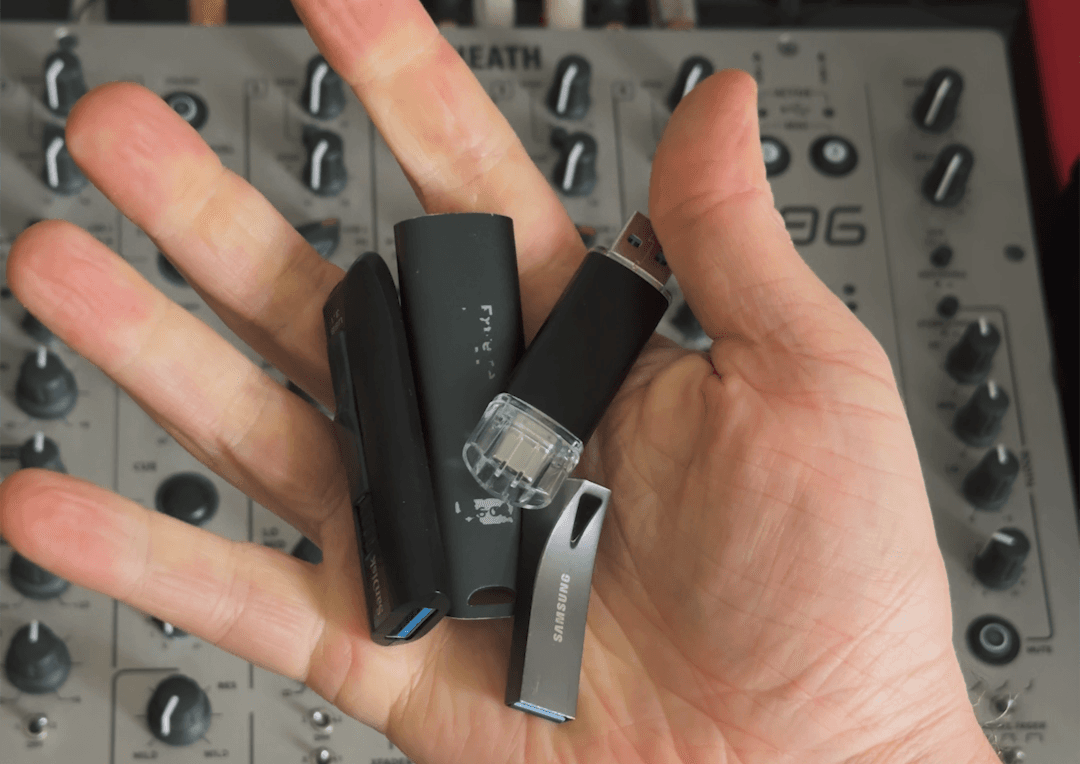
How to Format Your USB for Rekordbox and CDJs (Mac & Windows)
There's one mistake that can ruin a gig before you even touch a fader: showing up with a USB stick your CDJs won't read. It happens more than you'd think, and almost every time it comes down to one thing: the wrong file system format. Another issue might be the wrong file format of your audio files themselves.
Knowing how to format your USB for rekordbox is one of those things nobody explains when you're starting out, but it's completely avoidable. This article covers the two correct options depending on your operating system, what to avoid, and why the wrong choice causes problems.
Why USB Format Matters for CDJs
CDJs don't just read any USB stick you plug in. They need the drive to be formatted in a file system they understand. Plug in the wrong format and the player will either not recognize the drive at all, or show an error on screen right before your set.
File system format is the structure the operating system uses to store and retrieve data on a drive. FAT32, HFS+, and exFAT are all different formats with different compatibility profiles. Choosing the right one for your setup means your rekordbox library loads cleanly on every CDJ you play on.
There are basically two correct answers here. Which one applies to you depends entirely on whether you're on Mac or Windows.
Mac Users: Go with HFS+
If you're on a Mac, format your USB as HFS+, also called OS X Extended (Journaled). It's the native Mac file system and it's been supported by Pioneer CDJs since 2009, so compatibility with modern players is solid. The only exception are truly old players like the CDJ350, so beware of that!
HFS+ has a meaningful advantage over FAT32 when it comes to export speed. When you're pushing a large library from rekordbox to your stick, HFS+ is noticeably faster. For big USB drives or large collections, that difference adds up.
To format on Mac:
- Close rekordbox first (it locks the drive while open)
- Open Disk Utility (Applications > Utilities)
- Select the top-level USB device in the left panel, not the partition below it
- Click Erase
- Set Format to "OS X Extended (Journaled)"
- Set Scheme to "Master Boot Record"
- Click Erase and wait for it to finish
The scheme step matters. Without Master Boot Record, rekordbox exports will be slower and some players may not recognize the drive correctly.
There's no reason to use FAT32 as a Mac user. It's slower for exports and offers no compatibility advantage on a modern CDJ setup.

The rekordbox manual gives clear recommendations on stick formats
Windows Users: FAT32 Is Your Safest Bet
On Windows, FAT32 is the right choice. It's old, it's slow by modern standards, but it works with every CDJ model out there, including older ones you'll encounter in smaller venues that haven't upgraded their gear.
The catch with FAT32 on Windows is that the built-in formatting tool won't let you format drives larger than 32 GB in FAT32. It's an artificial limit, but it's there. If your USB stick is 64 GB or larger, you'll need a free third-party tool like GUIFormat (also called Fat32Format) to get the job done.
To format on Windows with a drive 32 GB or smaller:
- Close rekordbox
- Right-click the USB drive in File Explorer and select Format
- Choose FAT32 from the file system dropdown
- Run the format
For drives larger than 32 GB, download GUIFormat, select your drive, and format in FAT32 from there. The process takes a couple of minutes and the result is the same.
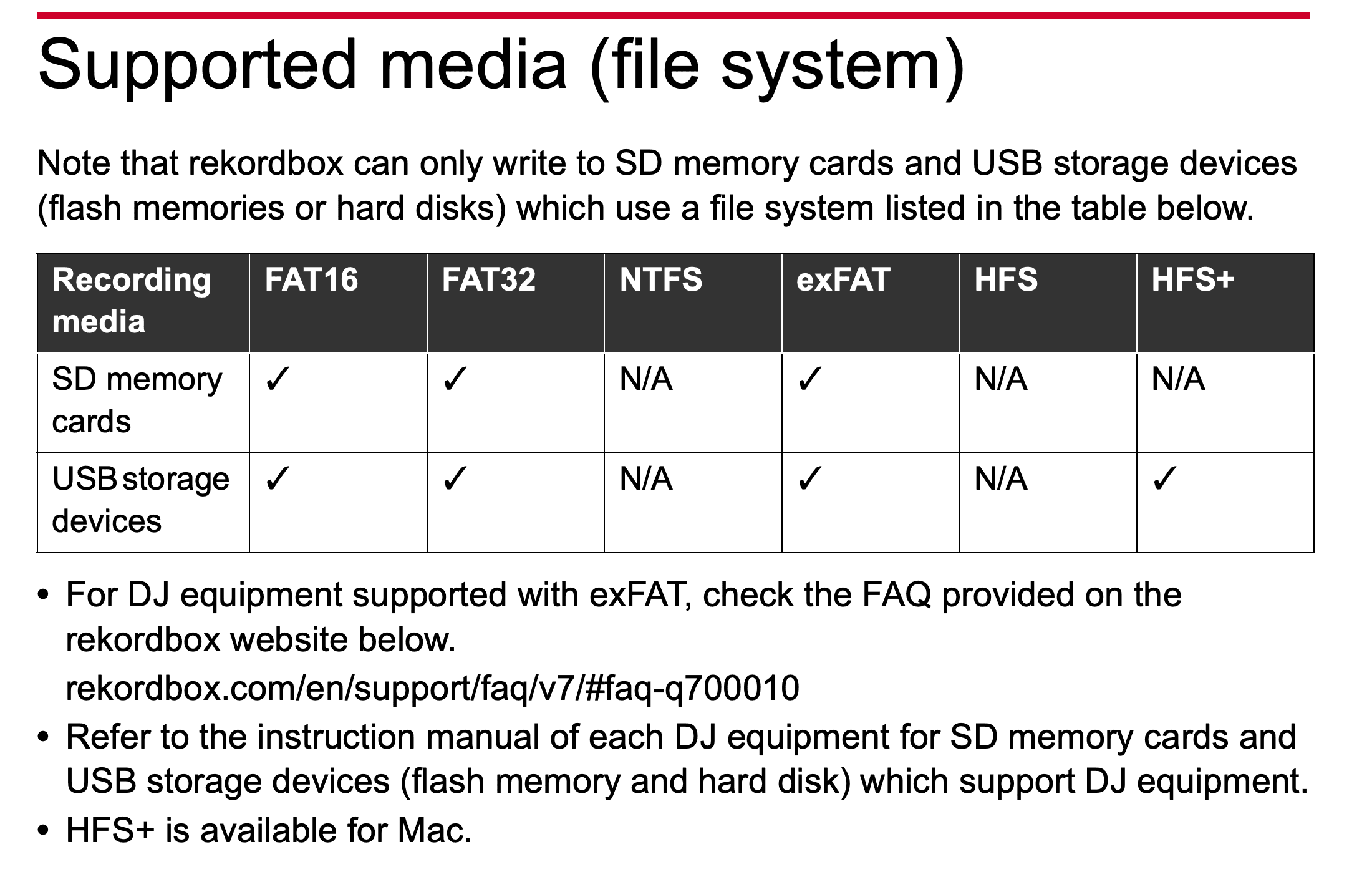
HFS+ and FAT32 are the key formats
What About exFAT?
exFAT is a newer format that handles large files and large drives without the 32 GB limit of FAT32. On paper it looks like a clean solution, especially for Windows users with bigger sticks.
The problem is CDJ support for exFAT is limited. Newer models like the CDJ-3000 support it, but older CDJ-2000s and other players you'll find in clubs don't. Unless you know every venue on your calendar has up-to-date gear, relying on exFAT is a risk.
For Mac users, HFS+ is better in every way. For Windows users, FAT32 is the safer, more universal choice. ExFAT is a modern alternative worth keeping in mind for the future, but not something to rely on for gigs yet.
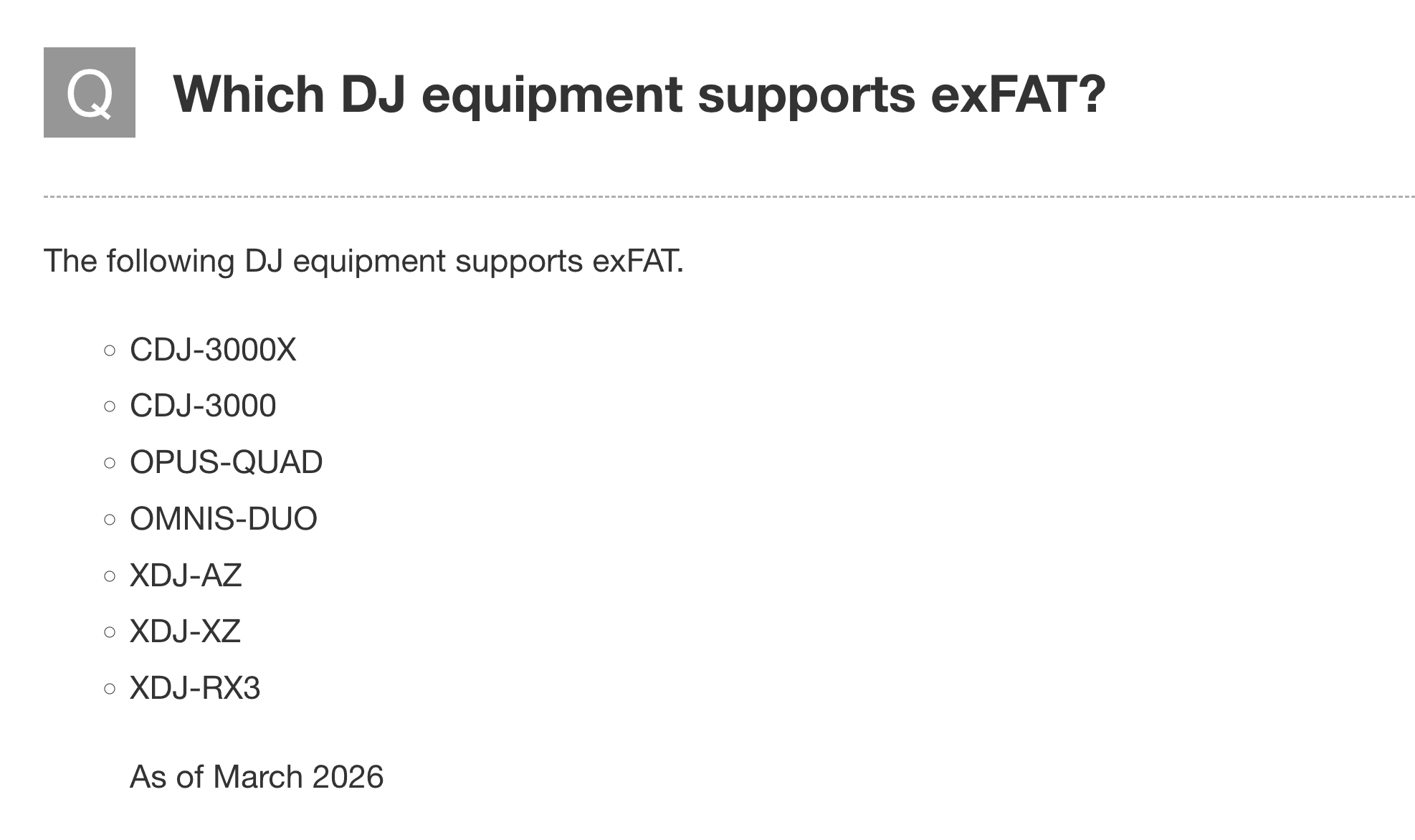
Only newer players are compatible with exFAT
Keeping Your Levels Consistent Across Your Library
Getting the USB format right is the first step in a reliable gig setup. But there's another technical issue that catches DJs off guard mid-set: volume inconsistency between tracks.
When every track on your USB is at a different loudness level, you end up riding the gain knob all night instead of focusing on your mix. That's where waveAlign comes in.
waveAlign normalizes your entire rekordbox library to a consistent loudness level using LUFS, the broadcast-standard measurement for perceived loudness. The processing is non-destructive: your original files are untouched, and none of your rekordbox cue points, loops, or metadata are affected. You export to your formatted USB with a library that's already balanced, so every track hits the same way on the CDJ.
If you've spent time sorting out USB compatibility, it's worth spending five minutes on your library levels too. Both problems have clean solutions.
Frequently Asked Questions
What is the best USB format for rekordbox? It depends on your operating system. Mac users should use HFS+ (OS X Extended Journaled) for fast exports and full CDJ compatibility. Windows users should use FAT32 for maximum compatibility with all CDJ models.
Can I use exFAT for CDJs? exFAT works on newer CDJ models like the CDJ-3000, but is not supported on older Pioneer players. If you're playing on a mix of venues with different gear, FAT32 (Windows) or HFS+ (Mac) are safer choices.
Why can't I format my USB to FAT32 on Windows? Windows blocks FAT32 formatting for drives larger than 32 GB through its built-in tool. You'll need a free third-party formatter like GUIFormat to format larger drives in FAT32.
Does USB format affect how fast rekordbox exports? Yes. HFS+ exports faster than FAT32 from rekordbox on Mac. If you're noticing slow export times, check that you've selected Master Boot Record as the scheme when formatting, not just the file system.
What happens if my USB is formatted incorrectly for a CDJ? The CDJ will either fail to read the drive entirely or show an error. You won't be able to access your library until the drive is reformatted and your tracks re-exported, which is not something you want to deal with at a venue.
Conclusion
Knowing how to format your USB for rekordbox comes down to two clear answers: HFS+ for Mac, FAT32 for Windows. Get the format right, set the scheme to Master Boot Record, and you won't have to think about it again.
From there, the next thing worth locking in is consistent track loudness across your library. waveAlign handles that automatically, so your USB is not just compatible but performance-ready.
References
Like what you see? Share with a friend.
Maxim Osipovs
Maxim is a DJ and software developer from Düsseldorf in Germany. As one of the founders of the waveAlign project he's eager to elevate musical performances on new levels. With a background in Pharmacy and almost ten years as a corporate strategy manager he took the leap this year to fully focus on the waveAlign project, as well as working as a freelance consultant for AI-supported process optimization.
Ready for perfectly balanced audio?
Try waveAlign and experience consistent loudness across your entire library.
Buy Now