MP3 Bitrate for DJs: Why 320 kbps Is the Only Safe Choice

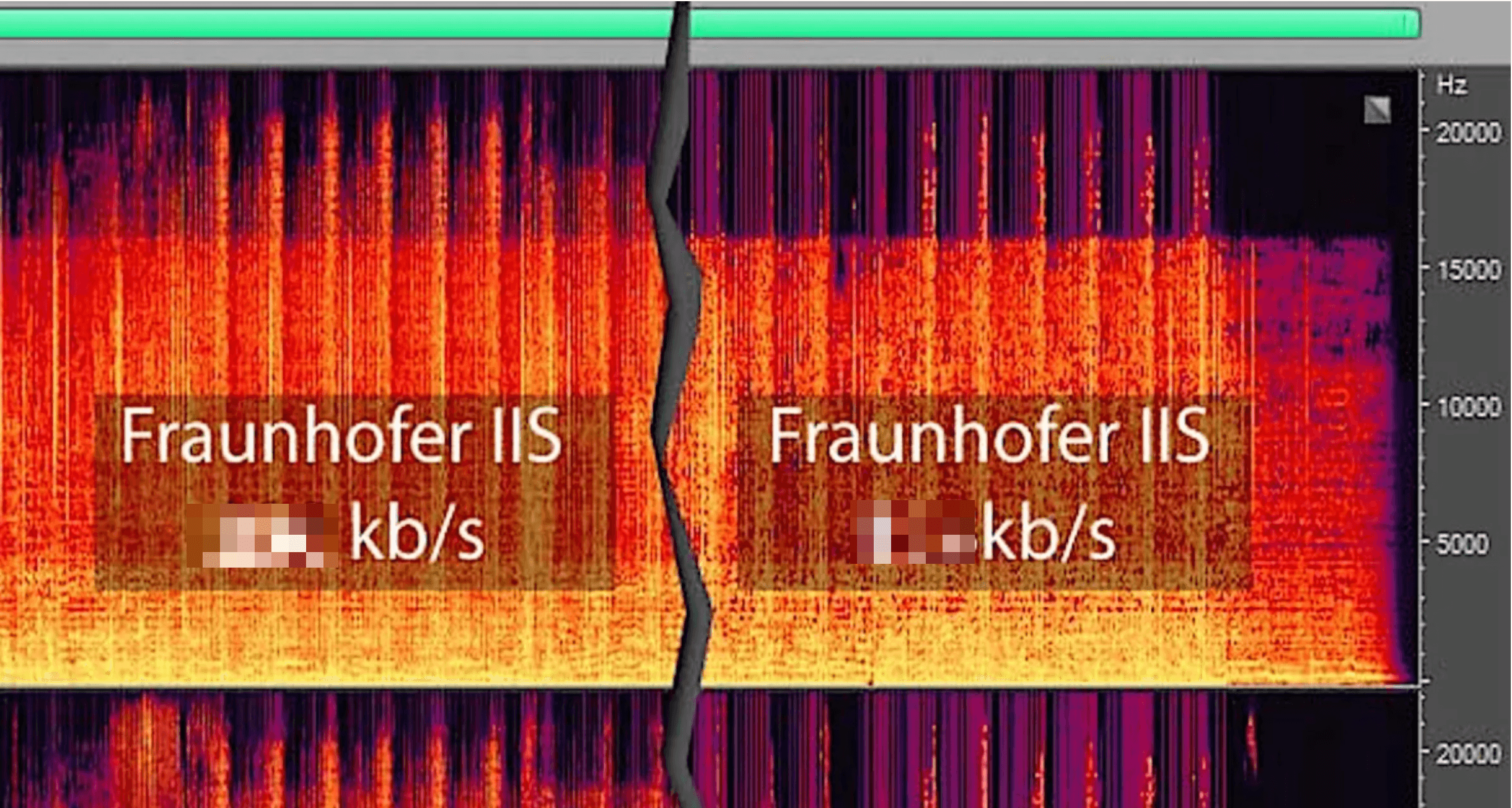
You've probably downloaded thousands of mp3s over the years and never once checked what's actually in them. Most DJs assume mp3 is mp3, that a track either has a "128" or "320" number next to it and otherwise behaves the same way. It doesn't. The right mp3 bitrate for DJs is the difference between a track that holds up on a real sound system and one that falls apart the second the kick hits.
Bitrate isn't just a file size setting. It decides which parts of the original recording survive the compression process and which parts get thrown away permanently. Get it wrong, and you won't hear the damage in your headphones. You'll hear it on the dancefloor, when your hihats turn metallic and your kicks lose their punch.
This article breaks down what bitrate actually does to your music, why a 128 kbps and a 320 kbps mp3 file can sound worlds apart despite looking identical in your library, and what number you should be checking before your next gig.
What Is MP3 Bitrate for DJs?
Bitrate measures how much audio data is processed every second, usually written in kilobits per second, or kbps. Kbit/s and kbps mean the same thing. Think of it as the file's data rate: how detailed a picture of the original recording gets packed into each second of playback.
A higher bitrate means more data per second, which generally means a more accurate reproduction of the source. A lower bitrate means less data per second, which means the encoder has to leave more out.
This matters specifically for lossy formats like mp3. Lossless formats such as WAV, AIFF, or FLAC either skip bitrate entirely or use one high enough that nothing gets discarded. MP3 works differently. It's built around throwing information away to hit a target file size, and bitrate is the dial that controls how much gets thrown away.
How MP3 Compression Actually Works
MP3 became the industry standard because of what it promises: shrink a track down while keeping it sounding close to the original. Done properly, an mp3 file can be roughly a fifth the size of the uncompressed source, all while sounding practically indistinguishable to most listeners.
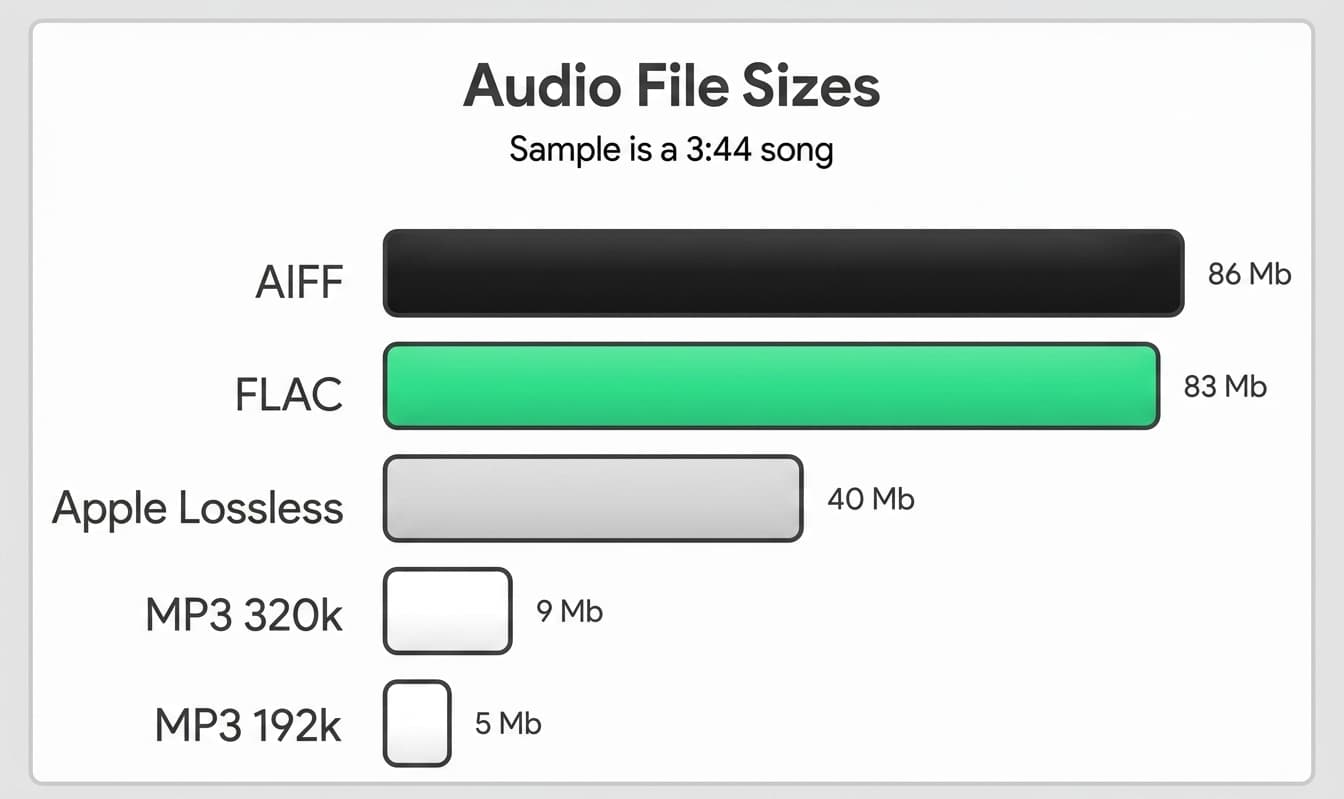
Audio File Size Comparison
That trick isn't achieved by resampling the whole file evenly. The mp3 encoder makes targeted cuts. It analyzes the audio and identifies which parts of the signal you're least likely to notice missing, based on how human hearing actually works. Quiet sounds sitting right next to loud transients get masked by the loud sound anyway, so those get cut first. So do frequencies right at the edge of what's audible to the human ear.
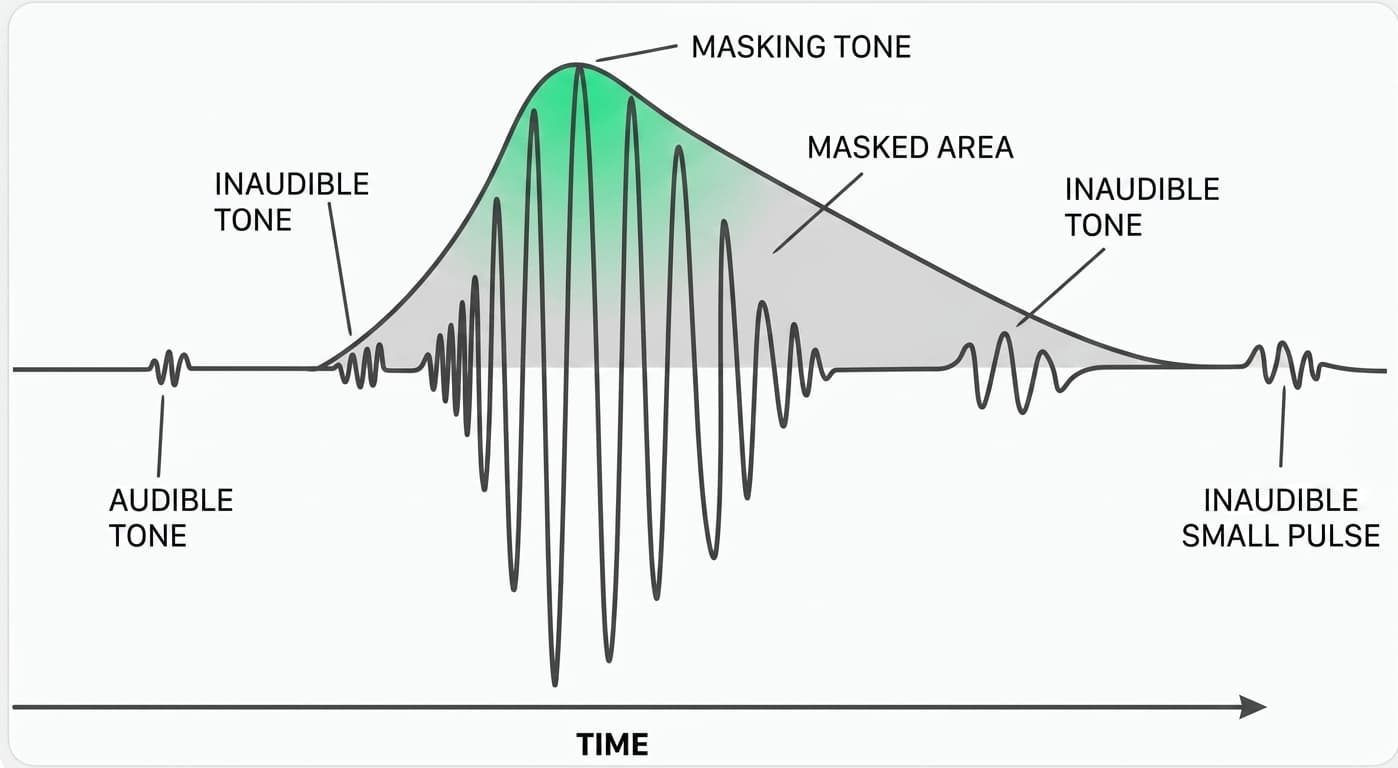
Example of removed audio data through mp3 encoder
Once that data is gone, it's gone permanently. There's no getting it back by converting the file to a different format or a higher bitrate later. The encoder made its decision once, at export, and that decision is baked into the file forever.
320 kbps vs 128 kbps: What You're Actually Losing
Think of bitrate as the encoder's budget for compression. The higher the bitrate, the more room the encoder has to work with, and the more conservative it can afford to be about what it cuts.
At 320 kbps, that budget is generous. The encoder only needs to make conservative cuts, mostly audio that was genuinely inaudible in the first place. This is why a well encoded 320 kbps mp3 can sound close to indistinguishable from its lossless source, even to a trained ear.
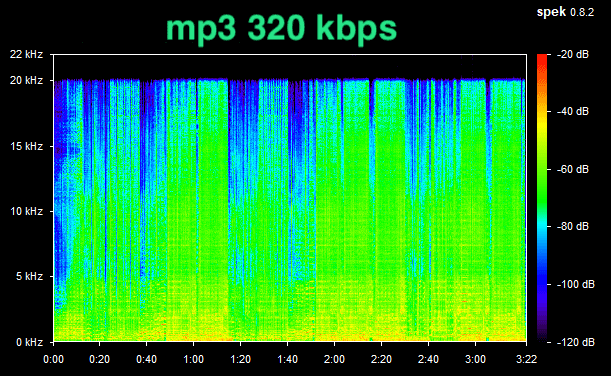
Spectrogram of a 320 kbps mp3 file
Drop to 128 kbps, and that budget shrinks dramatically. The encoder no longer has room to be selective. It has to start cutting into audio you can actually hear, and the damage shows up in specific, predictable ways:
- Hihats and cymbals turn metallic, losing their natural shimmer and sounding thin or artificial
- Kicks and snares lose punch, flattening out instead of hitting with impact
These aren't random side effects. They're exactly the elements a big sound system is built to reproduce, and exactly what a dancefloor feels first. A 128 kbps file might sound passable through laptop speakers or cheap earbuds. Put the same file through a club rig, and the missing data becomes obvious.
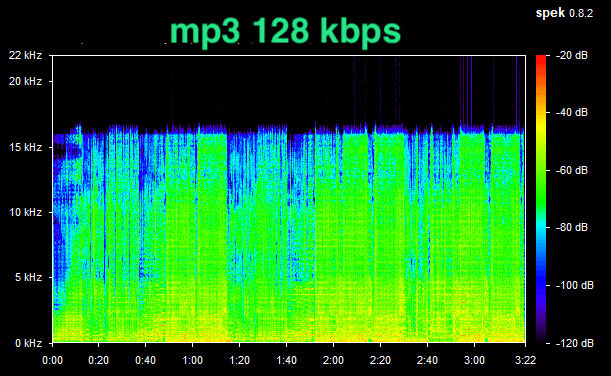
Spectrogram of a 128 kbps mp3 file
How to Check Your Files' Bitrate Before a Gig
You don't need special software to catch a low bitrate file before it ends up in your set. Most DJ platforms show it right in the library view.
- Rekordbox: Right-click a track, select "Track Info," and check the Bit Rate field, or add a Bit Rate column directly to your track list view
- Serato DJ Pro: Right-click any column header in your library view and enable the Bit Rate column
- Traktor: Open the track's properties panel from the browser, or add a Bitrate column to your collection view
- On Mac or Windows directly: Right-click the file, choose "Get Info" (Mac) or "Properties" (Windows), and check the audio details section
Make it a habit to sort your library by bitrate occasionally, especially after adding a batch of downloads from a source you don't fully trust. Anything showing less than 320 kbps deserves a second look before it goes anywhere near your set.
MP3 vs WAV: Do You Need to Go Lossless?
If bitrate is what separates a good mp3 from a bad one, where does that leave lossless formats like WAV or FLAC?
Lossless formats keep every piece of the original audio data. Nothing gets cut, ever, regardless of bitrate. That comes at a cost: a WAV file can run four to five times larger than an equivalent 320 kbps mp3, which adds up fast across a library of thousands of tracks.
For most DJs, a properly encoded 320 kbps mp3 gets close enough to lossless that the difference becomes very hard to hear on the vast majority of systems, including most club rigs. Going lossless is a reasonable choice if storage isn't a concern for you, but it isn't a fix for a low bitrate problem. A 128 kbps file converted to WAV doesn't get any of its lost data back. It's still a 128 kbps file, just wearing a bigger file extension.
The real decision isn't mp3 vs WAV. It's making sure whatever format you use was encoded properly in the first place.
Getting Your Bitrate Right Is Only Half the Job
Checking your bitrate solves one problem: making sure the audio data in your files is actually there. It doesn't solve a second, completely separate problem: making sure that data plays back at a consistent volume from track to track.
Even a perfectly encoded 320 kbps mp3 can sit at a wildly different loudness level than the next track in your set. One track was mastered loud, the next wasn't, and now you're riding the gain knob mid-mix trying to compensate, on top of everything else you're managing in the booth.
waveAlign normalizes your entire library to a consistent loudness level using the same broadcast standard streaming platforms rely on, so every track in your set starts from the same baseline. It works directly with mp3 files, including your properly encoded 320 kbps ones, without touching your metadata, cue points, or the audio quality itself. Bitrate handles whether the data is there. waveAlign handles whether it plays back consistently.
Frequently Asked Questions
What is the best mp3 bitrate for DJing? 320 kbps is the safest choice for DJing. It gives the mp3 encoder enough room to make only conservative cuts to the audio, preserving the punchy kicks and clean hihats that matter most on a big system.
Is 128 kbps mp3 good enough for DJs? No. At 128 kbps the encoder has to cut into audio you can actually hear, which shows up as metallic hihats and flattened kicks and snares. It might sound fine on headphones, but the damage becomes obvious on a club sound system.
What does mp3 bitrate actually mean? Bitrate measures how much audio data is processed per second, in kilobits per second (kbps). It controls how conservative or aggressive the mp3 encoder has to be when deciding what to cut from the original recording.
Do I need WAV files instead of mp3 for DJing? Not necessarily. A properly encoded 320 kbps mp3 sounds close enough to lossless for most DJs and takes up far less storage. WAV only matters if you want zero data loss regardless of file size, and it won't fix a file that was already encoded at a low bitrate.
How do I check the bitrate of my mp3 files? Most DJ software and media players show file bitrate directly in the track info or file properties panel. Look for any file below 320 kbps before you add it to your set, especially tracks downloaded from unofficial sources.
Conclusion
Not every mp3 is created equal, and getting your mp3 bitrate right as a DJ comes down to one number. At 320 kbps, the encoder only cuts audio you were never going to hear anyway. Drop below that, and you start losing the punch and clarity a real sound system is built to deliver, exactly when it matters most.
Before your next gig, go through your library and check the bitrate on your tracks, especially anything downloaded from unofficial sources. Anything under 320 kbps is worth replacing.
Getting your bitrate right takes care of one half of the equation. The other half is making sure every track plays back at a consistent loudness once the data is right. That's what waveAlign is built for. Try it today and stop worrying about which of your tracks are quietly working against you.
Like what you see? Share with a friend.
Maxim Osipovs
Maxim is a DJ and software developer from Düsseldorf in Germany. As one of the founders of the waveAlign project he's eager to elevate musical performances on new levels. With a background in Pharmacy and almost ten years as a corporate strategy manager he took the leap this year to fully focus on the waveAlign project, as well as working as a freelance consultant for AI-supported process optimization.
Ready for perfectly balanced audio?
Try waveAlign and experience consistent loudness across your entire library.
Buy Now